|
|
|
|
User Guide
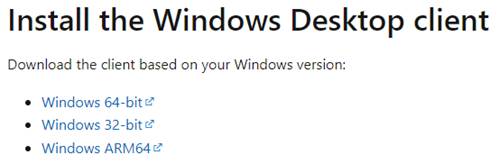
Browse to this web page: https://docs.microsoft.com/en-us/azure/virtual-desktop/user-documentation/connect-windows-7-10Select Windows 64-bit to download the Remote Desktop installer file |
|
|
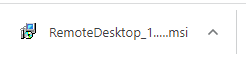
Wait for the file download to complete – it will likely appear
on the bottom left or the upper right of your browser. Click on the file to start the install. |
|
|
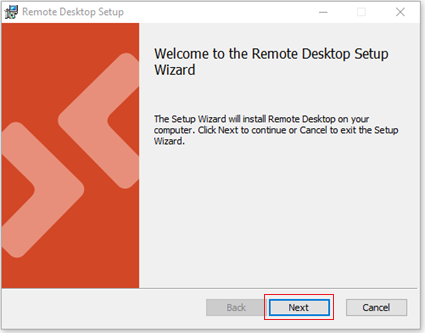
Click Next |
|
|
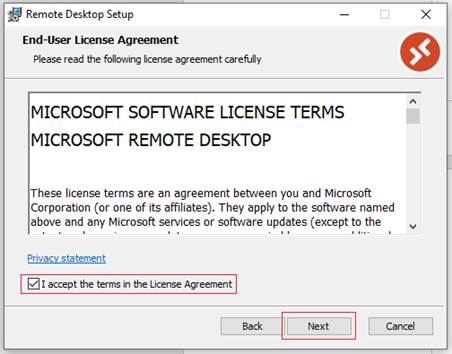
Accept the License Agreement terms and click Next |
|
|
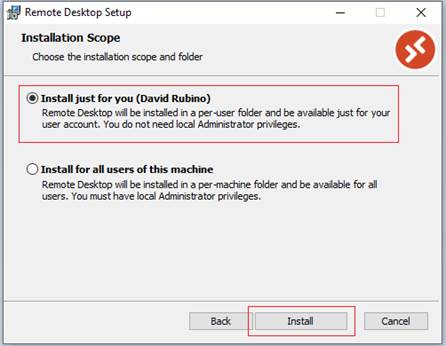
Ensure Install just for you is selected and click Install |
|
|
When the install completes ensure Launch Remote
Desktop when setup exits is selected and click Finish to launch the
Remote Desktop Application. |
|
|
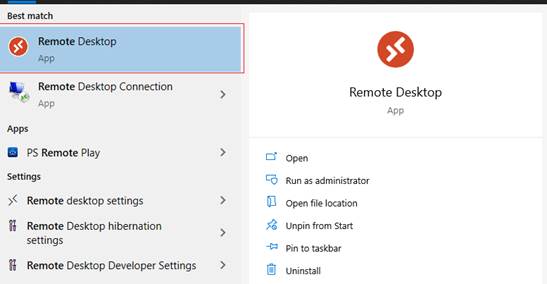
You can also launch the application from your Windows
start menu |
|
|
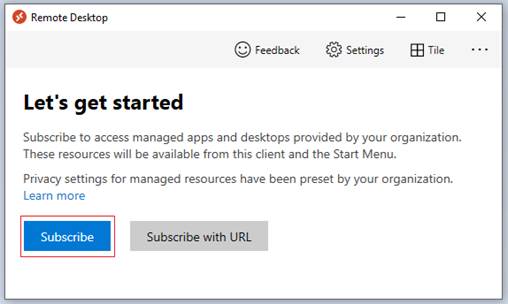
Click Subscribe |
|
|
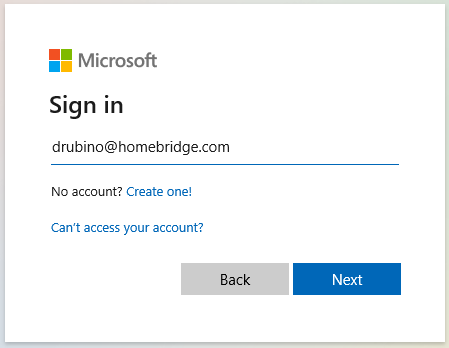
Enter your email address then click Next |
|
|
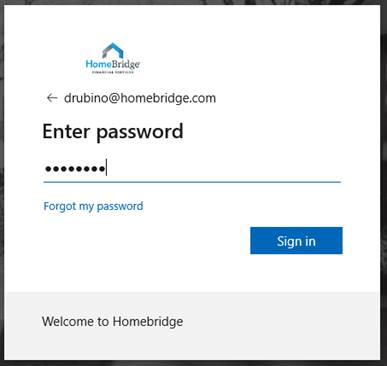
Enter your password then click Sign in |
|
|
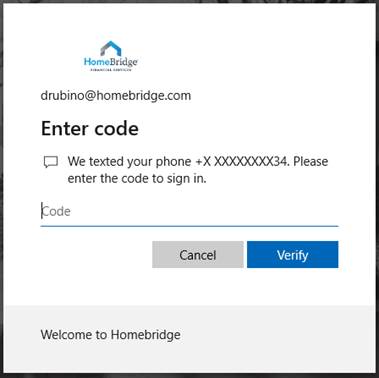
A challenge SMS code will be sent to your cell
phone. Enter your code and
click Verify Note: If this is your
first time accessing the corporate environment, you will be prompted to set
up your cell phone for secondary authentication. |
|
|
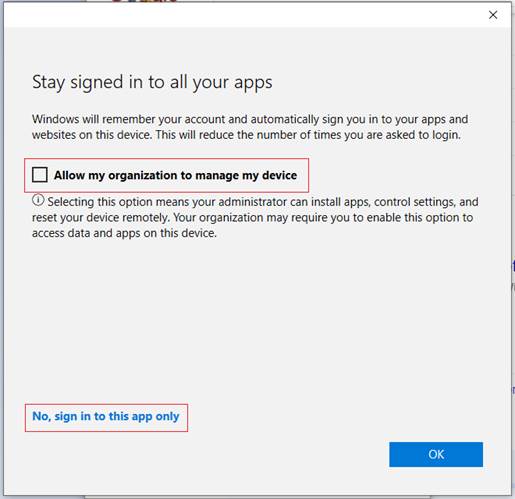
Note If this is your personal computer, you may see the
following notice. You are not
required to Allow my organization to manage your device. For your own privacy, we recommend that you uncheck
this box and click No, sign in to this app
only. |
|
|
Your email is associated with a subscription. |
|
|
If you see this alert message, please open a helpdesk
ticket via the online portal at https://help.homebridge.com |
|
|
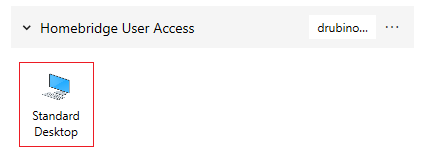
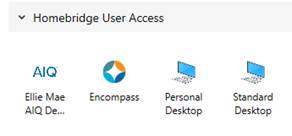
Once successfully authenticated, you will see an icon for
the virtual desktop that has been assigned to you. Click on the icon to access your virtual desktop |
|
|
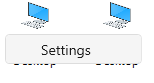
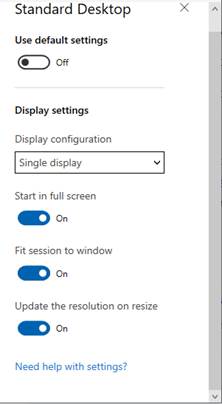
(optional) By default, the desktop will open across all
monitors. If you wish for the desktop
to only open on one monitor or in a window, right click on the icon and
select Settings. Unselect Use default settings. Select any options for your customized
result. |
|
|
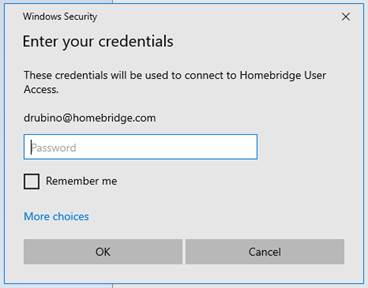
You will be challenged again for your password. Enter your password, click Remember
me (optional), and then click OK. |
|
|
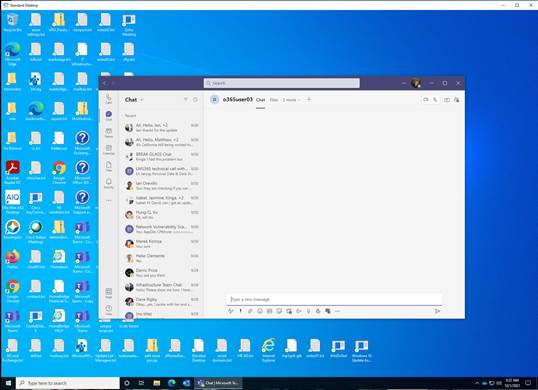
You can now navigate your virtual desktop. Note: If you previously
used OneDrive, your files will appear shortly |
|
|
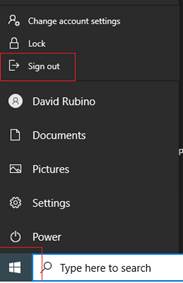
When you have finished using the virtual desktop, it is
best to sign out. Click Start menu from within the virtual desktop
environment. Then click on your username and Sign out. |
|
|
As the Azure Virtual Desktop evolves, other services and
icons could be made available to you. |
|
|
Help and Support If you need assistance or have any questions, open a
helpdesk ticket at https://www.homebridge.com |
|